Documentation
Black Lotus Press turns Moxfield decks into print-ready card images for the custom playing cards of meinspiel.de or notmpc.eu and hands them to the shop. This page walks through it from installing to ordering.
Install
Download the app for your computer from the latest release. It needs Google Chrome or Microsoft Edge, which it opens to load Moxfield decks and to upload to meinspiel.de.
| System | Download | Notes |
|---|---|---|
| macOS on Apple Silicon (M1 and later) | Black-Lotus-Press-mac-arm64.dmg | Intel Macs are not supported. |
| Windows 10 or 11, 64-bit | Black-Lotus-Press-win-x64-setup.exe | Or the portable Black-Lotus-Press-win-x64.zip. |
| Linux, 64-bit | Black-Lotus-Press-linux-x86_64.AppImage | Make it executable, then start it. |
The first launch
The app is not signed with a paid certificate, so your system warns before the first start. This only happens once.
-
macOS: open the DMG and drag the app into Applications. macOS then refuses to open it and says it "is damaged" or that Apple "could not verify" it. The app is fine; it is only not signed with an Apple certificate. Run this once in Terminal, which is in Applications → Utilities:
It removes the "downloaded from the internet" mark from the app, then it opens normally. Run it again after installing an update.
xattr -cr "/Applications/Black Lotus Press.app" - Windows: when SmartScreen shows "Windows protected your PC", click More info and then Run anyway.
- Linux: run
chmod +x Black-Lotus-Press-linux-x86_64.AppImageand start the file. See Troubleshooting if it does not open.
Updates
The app looks for a new version each time it starts. Installed with the Windows setup or as a Linux AppImage, it downloads the update in the background and installs it when you restart or quit; Restart now in the sidebar does it right away. On a Mac and with the portable Windows ZIP, the sidebar shows the new version with a Download button that leads to this website.
First start
The app opens with an empty order list on the left. Before the first order, look at Processing profiles at the bottom of that list. A profile holds the settings every order takes over:
- Orders folder: where the card images and PDFs of each order go. By default
Documents/Black Lotus Press/orders. - Browser: Google Chrome or Microsoft Edge.
- Resolution: 300 dpi is what meinspiel.de asks for. 600 dpi with upscaling looks sharper; see Upscaling.
- Copyright line: what happens to the copyright line on the cards; see Processing profiles.
After the splash screen the app asks where you want to print: meinspiel.de or notmpc.eu. Every order belongs to the shop it was made for, and the order list shows the orders of the chosen shop. Switch print shop at the bottom of the list asks again.
Click New order, give it a name, and you are in the order's Setup tab.
Orders and decks
An order is one print job: one or more decks, a card back, and the settings of a profile. Its tabs follow the job: Setup, Cards, Print.
Add a deck
- Paste the link of a Moxfield deck, for example
https://moxfield.com/decks/…, and click Add deck. The deck has to be public or unlisted. - Tick the boards to print: main board, sideboard, tokens, considering, attractions, contraptions, stickers, planar deck, schemes. Commanders and companions are always included.
- Click Import. A browser window opens on the deck, the app reads it and closes the window again, then it looks up every card on Scryfall.
The app uses exactly the printing chosen in Moxfield. Cards Scryfall does not know are marked, so you can pick a printing or your own image for them.
Foils
When the deck has foils in Moxfield, a dialog lists them right after the import. Keep the foil printings, or pick a non-foil printing for any of them; the card editor then shows non-foil printings only. Closing the dialog keeps everything as it is.
Update, import again, remove
- Update brings the deck's changes from Moxfield: new cards, removed cards, changed quantities and printings. Your own edits stay: switched-off cards, own images, brightness, printings you picked, and quantities you changed unless Moxfield changed them as well.
- Import again replaces the deck's cards with a fresh import. Your edits to this deck are lost.
- Remove takes the deck and its cards out of the order.
Every deck of an order is imported on its own, so editing one deck never touches the others.
Card back
Every card without its own back gets the order's card back. It is a Google Drive ID from the MPC Autofill database, shown with a live preview. To find more: open MPC Autofill's Explore page, choose the type Cardback, open one and copy its Identifier.
Double-faced cards always get their real back face.
Cards
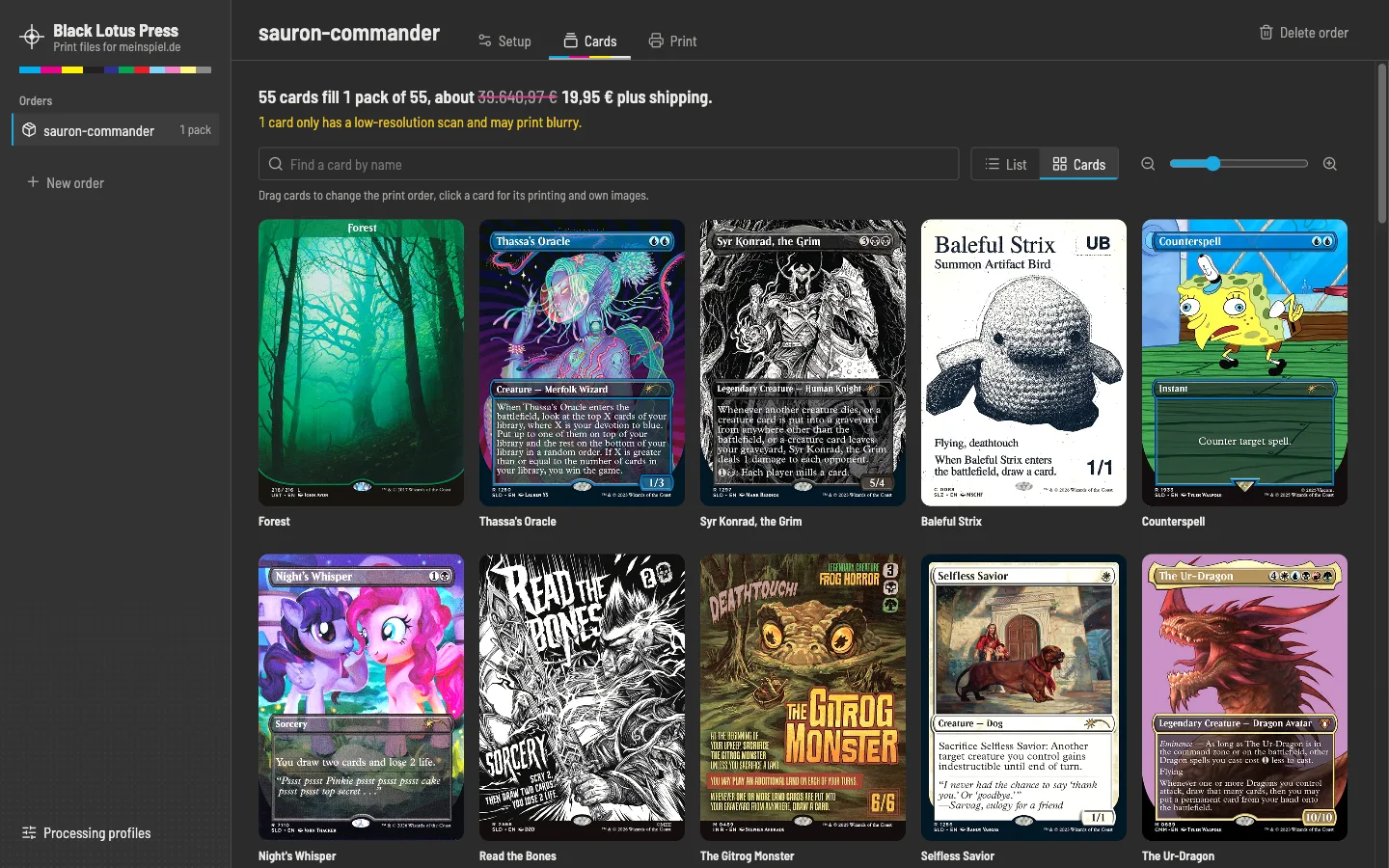
The Cards tab shows the whole order, as a list or as a zoomable grid. At the top, a summary says how many packs the cards fill, how many slots stay blank, which tokens are left out, and what the packs cost. The Cardmarket value of the printed cards is shown struck out next to it.
Edit
- Copies: change the number in the list.
- Print: untick a card to leave it out without removing it.
- Order: drag cards, or use Alt + arrow keys on the handle. The list order is the print order.
- Find: the search box filters by name.
Choose the image
Click a card to open the card editor. On the left it shows the image the card prints from, large; on the right are the images to choose from, in three tabs. Click one to see it on the left, then Use this. A double-click uses it at once. The slider above the tabs makes the images bigger or smaller.
- Printings: every printing on Scryfall with its set and price. Filter by set, frame style (borderless, full art, extended art, showcase, old frame), price, paper or non-foil, and sort by date, price or set. When a card has several copies, choose how many of them get the new printing. They get their own entry right after the card; when an entry of the same card already has that printing, they join it.
- MPC Autofill: the images of MPC Autofill with their resolution. The app compares them with the Scryfall scans of all printings and shows first the ones that match the card's printing. An image of another printing gives the card that printing; custom art and own frames are kept apart.
- Own image: your own image for the front or back. PNG, JPEG and WebP in portrait work.
Compare with Scryfall shows the Scryfall scan next to the image. Scroll to zoom both at once, drag to move, double-click to zoom in or out; 1:1 shows one image pixel per screen pixel, so the difference in sharpness is plain. MPC Autofill images load in full resolution for this. Double-faced cards have a switch for the front and back.
The keyboard works too: arrow keys pick an image, Enter uses it, C compares, and Page Up and Page Down go to the previous or next card. Use Scryfall again drops the own and MPC Autofill images of the card.
MPC Autofill for the whole order
Use the sharpest MPC Autofill images on the Cards tab gives every printed card the MPC Autofill image of the highest resolution that shows its printing. Cards with an own or MPC Autofill image keep it, and cards without a matching image keep their Scryfall scan. Large decks take a few minutes.
Afterwards a list shows the cards MPC Autofill has no image of the printing for. Choose image… opens the card editor on its MPC Autofill tab, where an image of another printing gives the card that printing. The list stays at hand on the Cards tab.
Own images and bleed
- Images in the page format, 69 × 94 mm or the same proportions, already contain the bleed and are used as they are. MPC images are made like this.
- Card-sized images, 63 × 88 mm, get a mirrored 3 mm bleed.
Own images skip the copyright and stamp clean-up, but are upscaled like every other card.
Brightness and contrast
Print comes out darker than a screen, so every order starts at 110 % brightness. Set brightness and contrast for the whole order on the Print tab, and on top of that for single cards in the card editor. The previews show the change right away.
Print and upload
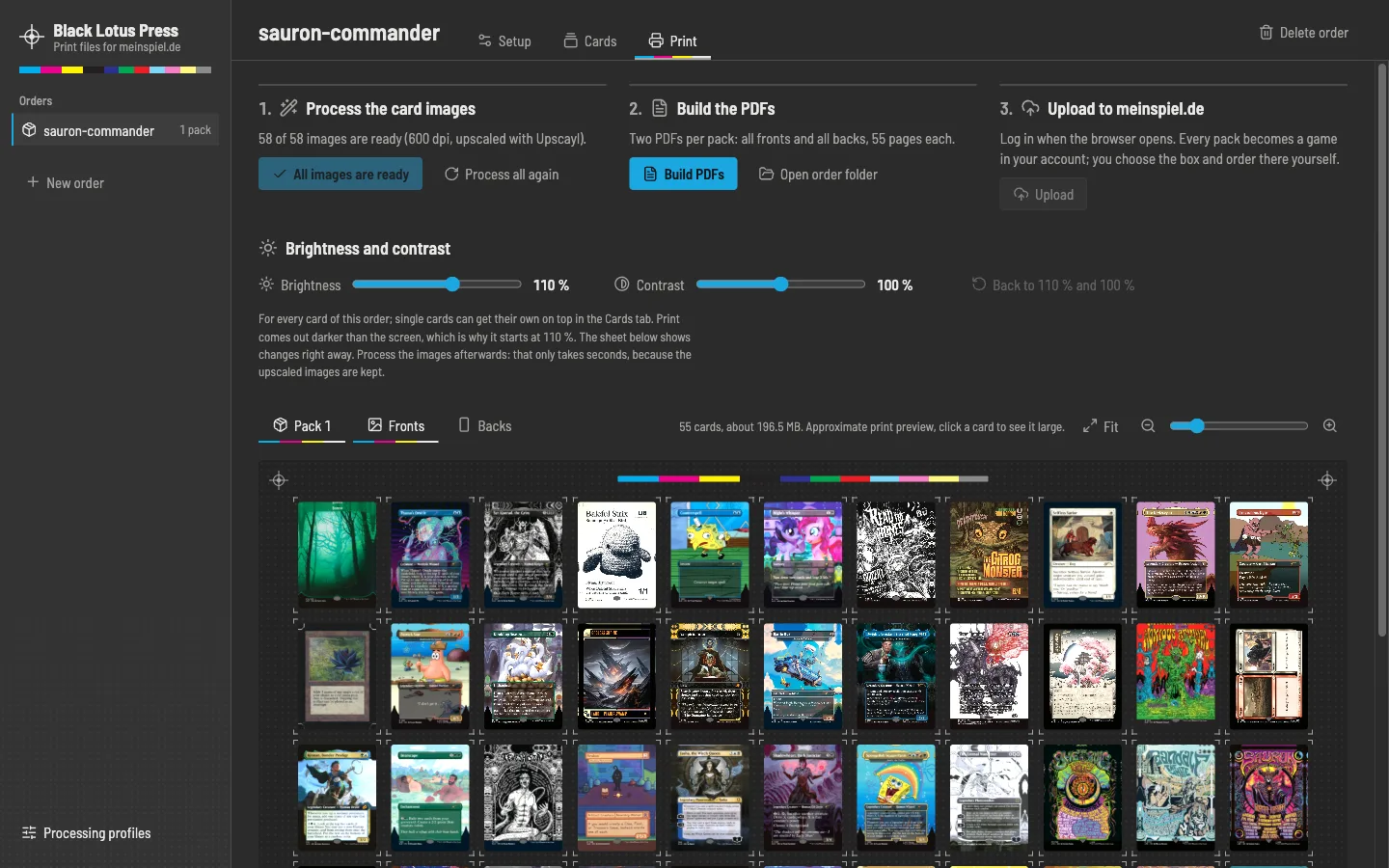
For meinspiel.de the Print tab has three steps, with the press sheet of every pack below them. For notmpc.eu it has two; see notmpc.eu.
1. Process the card images
Downloads the scans, cleans them up, adds the bleed, upscales them if the profile says so, and converts them to CMYK. Images that are already done are skipped, so only new or changed cards take time. While upscaling, the step shows the GPU load and temperature on Apple Silicon Macs and with NVIDIA graphics cards.
Click a card on the press sheet to see it large with its back. Process again makes that image anew from the download on; Process all again does it for the whole order. Use it when a card came out wrong, for example after a download error. Processing gives the same result for the same input, so a card that is wrong for another reason stays wrong; please report it.
2. Build the PDFs
Writes two PDFs per pack into the order's folder: pack-01-fronts.pdf and pack-01-backs.pdf, 55 pages each. The list below the button shows each pack's size; both PDFs of a pack must stay below meinspiel.de's 200 MB.
3. Upload to meinspiel.de
- Click Upload. A browser window opens meinspiel.de's login page and accepts the cookie banner.
- Log in, or create an account. The app waits up to 15 minutes and never sees your password.
- Every pack becomes a game in your account, named after the order, for example
my-order - Deck 1/2, and opens in its own tab. - Choose the box, click Speichern / Bestellen and check out on meinspiel.de. The app never orders or pays anything.
After the upload, the step lists links to the games. Your saved games are also in your meinspiel.de account under "Gestaltete Spiele". You can always upload the PDFs by hand instead: they are ordinary files in the order's folder.
notmpc.eu
notmpc.eu prints decks of 18 up to 612 cards. The app puts the cards into the smallest deck that holds them, so a 100-card Commander deck becomes one deck of 108 cards, and the press sheets show the decks instead of packs.
- Process the card images: as for meinspiel.de, but in RGB instead of CMYK, because notmpc.eu prints RGB images.
- Send to notmpc.eu: a browser window opens notmpc.eu's designer with every card in its slot, one tab per deck. MPC Autofill images without brightness or contrast of their own go there as links, the others are uploaded. No account is needed.
Choose the options and order in the designer yourself; the app never orders or pays anything. When notmpc.eu asks to wait after many uploads in a row, the app waits and carries on.
Tasks
Imports, processing, PDFs and uploads run as tasks in the background. They are listed under Running at the bottom of the order list, with their progress and a button to cancel them, or to close the shop's browser after an upload. One task runs at a time.
Processing profiles
Profiles hold the settings for processing. An order takes over a copy of its profile; when you change the profile later, the order's Setup tab offers to use the changed profile. Changing the resolution, the copyright line or the upscaling processes the order's images again.
Copyright line
| Choice | Result |
|---|---|
| Keep the original | The card as printed by Wizards of the Coast. The default. |
| Blur it | The copyright line is blurred. |
| Blur it and add "Proxy – not for sale" | Blurred, with that note in white on top. |
| Blur it and write my own text | Blurred, with your own text in its place. Keep it about as long as the original line. |
The clean-up works on Scryfall's card frames and is best effort: on unusual frames a box may sit slightly off.
Advanced
Card width, bleed, corner radius and border crop are for special cases; the defaults fit meinspiel.de.
Upscaling
Scryfall's scans are 745 pixels wide. That is enough for 300 dpi; for 600 dpi the app scales them up with Upscayl, an AI upscaler that runs on your graphics card. Its models are trained on noisy, blurry and compressed images, so upscaling also cleans up the scans a little.
- Open Processing profiles, click Install Upscayl. It downloads the program and its models from GitHub.
- Make sure Upscale the Scryfall scans with Upscayl is ticked, set the resolution to 600 dpi and pick a model.
- Save the profile, and use it in the order's Setup tab.
Upscaling only runs above 300 dpi. Seconds per card on an Apple M1 Max:
| Model | Seconds | Character |
|---|---|---|
upscayl-lite-4x | 1.7 | Fast and close to the large models. |
digital-art-4x | 9.6 | Smoothest; suits drawn art, can look flat on painted art. |
upscayl-standard-4x | 12.0 | Crisp edges and text. |
ultrasharp-4x | 12.1 | Crisp edges and text, a little more contrast. |
ultramix-balanced-4x | 12.1 | Crisp, slightly softer than ultrasharp. |
remacri-4x | 12.5 | Natural, keeps the texture of the scan. |
high-fidelity-4x | 13.7 | Closest to the original scan. |
Every model is clearly sharper than plain resizing; the differences between them only show up close. A 600 dpi pack is 160 to 200 MB, right at meinspiel.de's limit of 200 MB; the Print tab warns when a pack is too big.
The meinspiel.de format
- meinspiel.de prints its 63 × 88 mm custom cards as decks of exactly 55 cards. Larger orders are split into several packs, and the last pack is filled with blank cards. A 100-card Commander deck needs two packs.
- Tokens only fill the free slots of the last pack and never cause an extra pack. Tokens that do not fit are listed as left out.
- Each PDF page is 69 × 94 mm: the card plus 3 mm of bleed on every side, which is cut off.
- Page n of the backs PDF is the back of page n of the fronts PDF.
- The images are CMYK with the ISO Coated v2 300 % profile that meinspiel.de asks for; the PDFs carry it as their output intent. They are not PDF/X-4, because meinspiel.de's processing fails on PDFs with the XMP metadata PDF/X-4 needs.
- A pack costs about 19,95 € plus shipping, as of this release.
Where your files are
| What | Where |
|---|---|
| Card images and PDFs | The orders folder of the profile, by default Documents/Black Lotus Press/orders/<order>, with cards/ and meinspiel/ inside. |
| Orders, profiles, own images, Upscayl | macOS: ~/Library/Application Support/black-lotus-press/dataWindows: %APPDATA%\black-lotus-press\dataLinux: ~/.config/black-lotus-press/data |
Open order folder on the Print tab opens an order's folder. To start over, quit the app and delete the data folder; to uninstall, also delete the app.
Command-line tool
Each release also has a command-line edition, Black-Lotus-Press-cli-<system>.zip, with its own Node.js inside. Unzip it and run black-lotus-press (Windows: black-lotus-press.cmd) in a terminal. It walks you through profiles and orders with menus and does the same processing, PDFs and upload as the app, without the editing and previews. It keeps its data next to where you start it.
Questions and answers
Is Black Lotus Press free?
Yes. It is open source under the MIT license. You only pay meinspiel.de for the printing.
Is it affiliated with meinspiel.de, Moxfield, Scryfall or Wizards of the Coast?
No. It is a fan project that uses their public websites the way you would in a browser.
Can I sell or give away the printed cards?
Please don't. Card images and names belong to Wizards of the Coast and the artists. Print proxies for your own playtesting and casual games, and follow meinspiel.de's terms. Many stores and tournaments do not allow proxies.
Why does the app open a browser window for Moxfield?
Moxfield has no public API for apps. The app opens the deck page like you would and reads the deck data the page loads, then closes the window.
Does the app see my meinspiel.de password?
No. You log in yourself in the browser window. The app only asks meinspiel.de whether someone is logged in, then uploads in that session.
Why are the cards brightened by 10 %?
Printed cards look darker than the same image on a screen. 10 % more brightness compensates for that in most cases. Change it on the Print tab for the order, or per card.
Why does meinspiel.de's preview look washed out?
The images are in the printer's CMYK colours. meinspiel.de's on-screen preview shows CMYK files paler than they print; the print uses the CMYK values.
Why do some packs have blank cards?
meinspiel.de only prints decks of 55 cards. The last pack is filled with your tokens first, then with blank cards.
Do I need Upscayl?
No. At 300 dpi, the resolution meinspiel.de asks for, the scans are used as they are. Upscaling to 600 dpi makes text and fine lines sharper; see Upscaling.
A card looks blurry. What can I do?
Scryfall only has a low-resolution scan of some printings; the app marks them as Low-res. Pick another printing of the card, or use your own image.
Can I use the app without meinspiel.de?
The PDFs are made for meinspiel.de's format, but they are ordinary print PDFs: 69 × 94 mm pages with 3 mm bleed in CMYK. Whether another print shop takes them depends on its requirements.
Why does macOS say the app is damaged?
It is not damaged. The app is not signed with a paid Apple certificate, so macOS blocks it after the download. xattr -cr "/Applications/Black Lotus Press.app" in Terminal lifts the block; see Install.
Does it run on Intel Macs?
The releases are built for Apple Silicon only. On an Intel Mac you can run the app from its source code; see the README on GitHub.
Troubleshooting
macOS says the app is damaged or cannot be checked
Black Lotus Press is not signed with an Apple certificate, which costs a yearly fee. macOS blocks such apps when they come from the internet, with a message that the app "is damaged" or that Apple "could not verify" it. Move the app into Applications and run once in Terminal:
xattr -cr "/Applications/Black Lotus Press.app"Do it again after every update. When macOS only says it "could not verify" the app, System Settings → Privacy & Security → Open Anyway works as well.
The upload fails with "pcntl_waitpid failed"
That message comes from meinspiel.de's server, which sometimes fails to process larger PDFs. Try again later, set the profile to 300 dpi to make the files smaller, or upload the PDFs by hand on meinspiel.de. If it keeps happening, please open an issue.
Importing a deck fails or hangs
- Check that the deck is public or unlisted on Moxfield.
- Check that the browser of the profile, Chrome or Edge, is installed.
- Cancel the task under Running and import again; Moxfield sometimes shows a check page first.
"Another task is still running"
One task runs at a time. Wait for it, or cancel it under Running at the bottom of the order list.
The app does not open on Linux
- AppImages need FUSE: on Ubuntu 22.04 and newer, install
libfuse2(Ubuntu 24.04:libfuse2t64). - Ubuntu 24.04 blocks the sandbox Chromium uses; start the AppImage with
--no-sandbox.
No GPU temperature
The temperature and load are read on Apple Silicon Macs and with NVIDIA graphics cards. Other graphics cards simply show no line.
Something else
Please open an issue on GitHub with what you did, what you expected and what happened, and a screenshot if it helps.
Credits and legal
Black Lotus Press is made by balatD and is based on MPC Proxy Forge by Benedikt Wüller. It is open source under the MIT license.
It uses card data and images from Scryfall, decks from Moxfield, card backs and high-resolution card images from MPC Autofill and the upscaler Upscayl. The website uses the typeface Barlow Semi Condensed under the SIL Open Font License.
Black Lotus Press is unofficial Fan Content permitted under the Fan Content Policy. Not approved/endorsed by Wizards. Portions of the materials used are property of Wizards of the Coast. ©Wizards of the Coast LLC. Not affiliated with meinspiel.de, notmpc.eu, Moxfield, Scryfall or MPC Autofill.